SKUs
When a customer purchases your product they purchase an SKU (Stock Keeping Unit). Only one version of a product can be assigned to an SKU, and each SKU receives its own license keys. A single SKU can contain one or several products. This means that you can activate every product in the SKU with a single license key.
Adding a New SKU
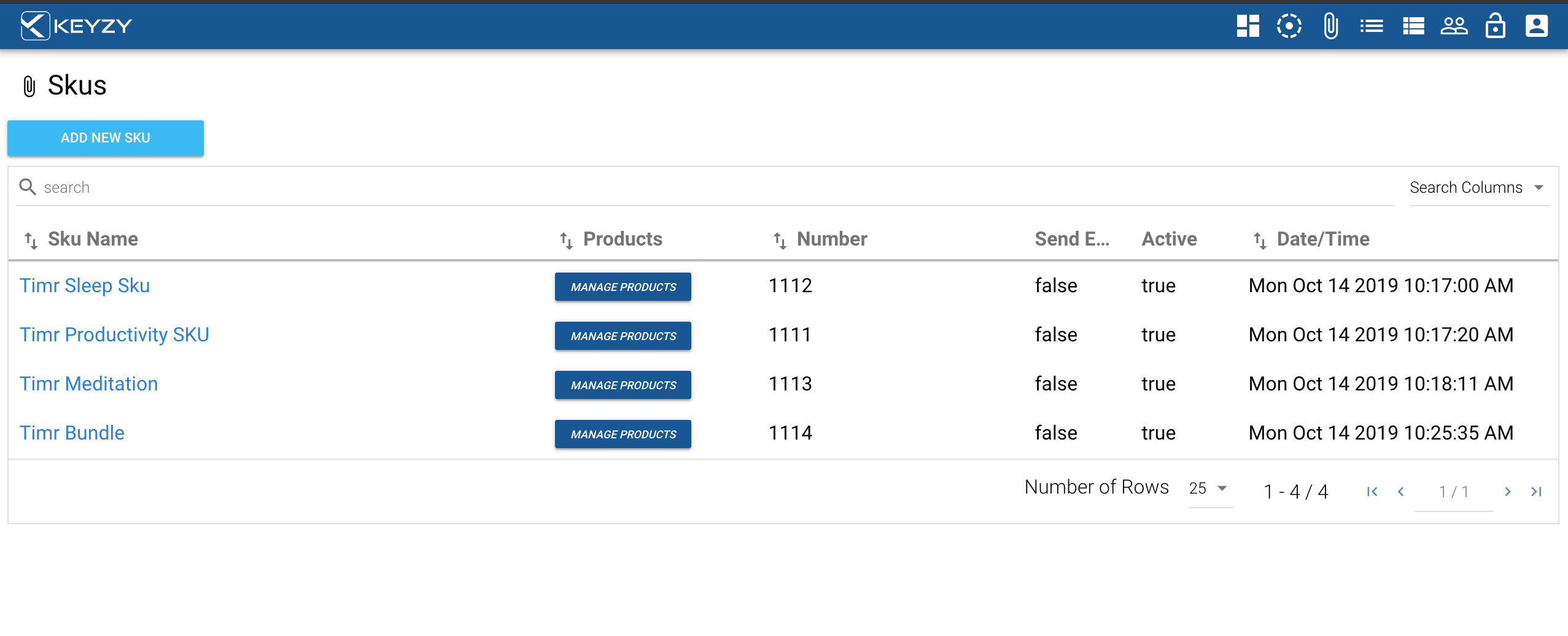
- To go to the SKU page, click the SKUs icon in the menu bar
- To create a new SKU, click the “Add new SKU” button. To edit an existing SKU, click on its name.
- This will open a pop-up box where you can modify:
- The SKU name
- The SKU number
- Offline License Life: Specifies how many days the offline license will be valid on your customer’s device. If you set it to 0, there is no time restriction and your customer can use it forever.
- License Type: Perpetual / Subscription / Trial. Can’t be changed later.
- Whether the SKU is active or not
SKU Details
Clicking on the name of your SKU will open a new pop-up box where you can modify additional options:
- You can select if you would like to send the serial number automatically to your client once a license has been activated (select True under the question “Should we send serial number…”)
- You can add a message to send to your client together with the serial number (fill in the field “Notes for email”)
- Additionally, you can modify the name of the SKU, its number and its status
Managing Products
Every existing SKU needs to have products assigned to it. The connection is made between an SKU and a version of a product. Click the “Manage Products” button to select which of your existing products will be bundled under the SKU.
The search bar allows you to search SKUs by any term in the SKU columns, by SKU name, by products or by SKU number.