FastSpring Integration
Install The Plugin
-
Download the Woocommerce FastSpring Plugin as a Zip file: github.com/cyberwombat/woocommerce-fastspring-payment-gateway
-
Upload it to your store and activate it
General Settings
- Go you your WooCommerce Settings page, click Checkout tab and click FastSpring link
- Check Enable FastSpring payment gateway
- If you want to test it first (recommended), check Enable Test Mode
- Use only Popup link for Storefront input
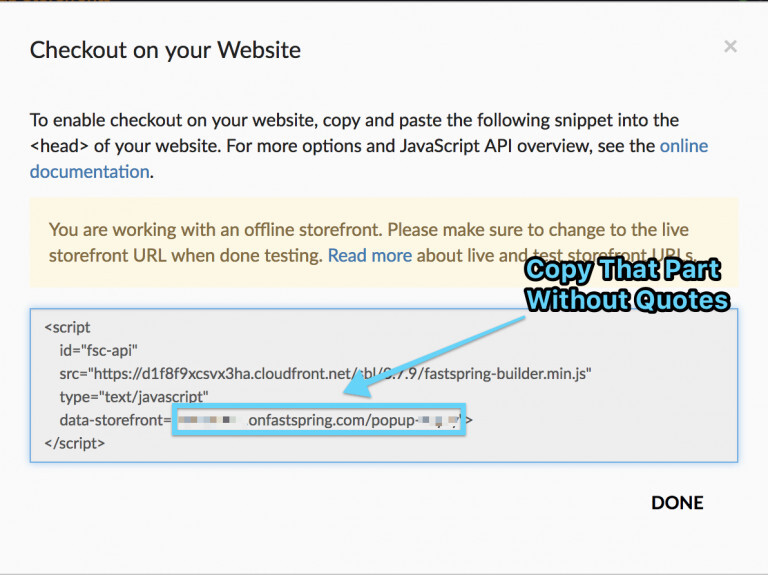
How to get Popup link? (ONLY USE POPUP STOREFRONTS)
- Go to your FastSpring dashboard
- Click to Storefronts link
- Click Popup Storefronts tab
- Click No whitelisted websites
- Enter your store’s full URL (e.g.
https://www.yourstore.com) and click SAVE - Click PLACE ON YOUR WEBSITE link
- In the Script, copy the value of data-storefront which is your Popup link (e.g.
yourstorename.fastspring.com/yourstorename-popup) - Go back to your WooCommerce store Checkout FastSpring settings page and paste the link to Storefront input
Store Build Library Settings
- Create a Private and Public key pair:
openssl genrsa -out privatekey.pem 2048 openssl req -new -key privatekey.pem -x509 -days 3650 -out publiccert.pem - Go to your FastSpring dashboard
- Click Integrations and Store Build Library
- Click Choose File button under File Upload section and show your publiccert.pem file
- Click Save
- Copy your access key under ACCESS KEY section
- Go back to your WooCommerce store
- Paste your access key to Access Key input
- Open your privatekey.pem file in a text editor
- Copy all text included “-----BEGIN RSA PRIVATE KEY-----” and “-----END RSA PRIVATE KEY-----” parts
- Paste the text to Private Key input
Webhook Settings
- Copy Webhook Secret
- Click Integrations and Webhooks
- Click ADD WEBHOOK URL link
- Go to your WooCommerce store Checkout FastSpring settings page and copy your webhook URL under Webhook Method Instructions section
- Go back to your FastSpring dashboard and paste it to URL section
- Go to your WooCommerce store Checkout FastSpring settings page again and copy Webhook Secret
- Go back to your FastSpring dashboard and paste it to HMAC SHA256 Secret section
- Check order.completed, order.canceled, order.failed checkboxes
- Click Add
API Credential Settings
- Click Integrations and API Credentials
- Create API Credentials
- Copy and Paste Username and Password respectively to your WooCommerce Checkout FastSpring Settings page’s API Username and API Password inputs
- Don’t forget to uncheck Enable Test Mode after your tests are finished
Save All Settings
Click Save Changes