Setting Up Your Product for Sale
After setting up your product, you need to create an App Key so your store can communicate with KEYZY. If you sell through third parties, you’ll also need to add Dealers.
Add an App Key
An App Key is an API credential that allows external systems to communicate with the KEYZY API. Both your e-commerce store and the C++ Client Library embedded in your application use App Keys to authenticate with KEYZY.
- Go to the App Keys page
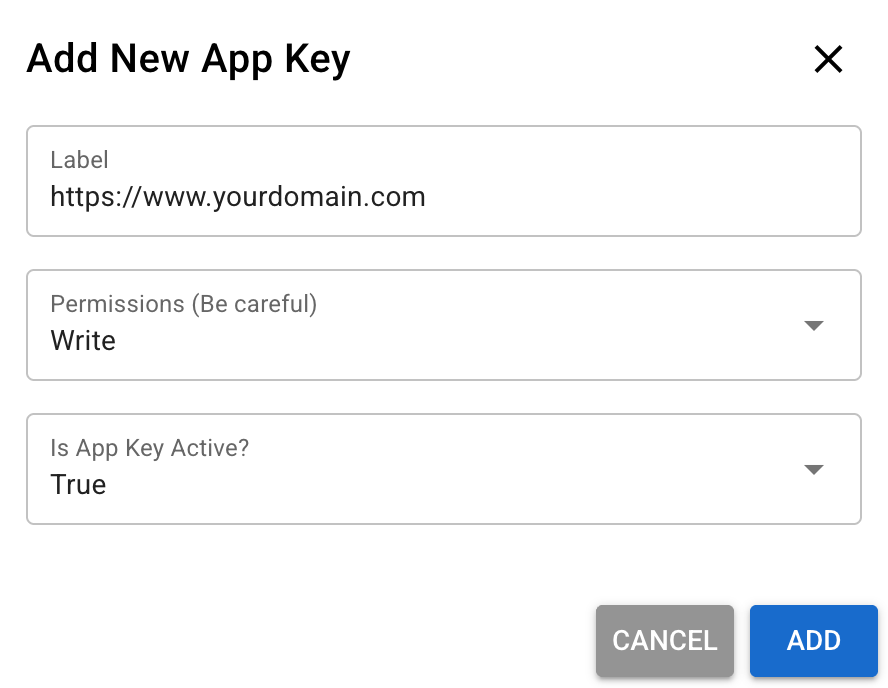
- Click Add New App Key
- Label — a name to identify where this key is used (e.g. your store URL)
- Permissions — choose the access level:
- Read — can only query and validate license data (used by the C++ Client Library and for reporting)
- Write — can register licenses, manage activations, and perform all operations (use this for your e-commerce store)
- Is App Key Active? — set to active
- Click Add
After creating the App Key, copy it and use it in your store integration. For example, the WooCommerce plugin requires the App Key during setup.
Keep your App Key secure. It provides API access to your account. Do not share it publicly or commit it to version control.
Add a Dealer (Optional)
Dealers are third parties who distribute your licenses on your behalf — for example, a reseller or a retail partner. When you generate licenses for a dealer, those licenses are allocated to them for distribution.
- Go to the Dealers page
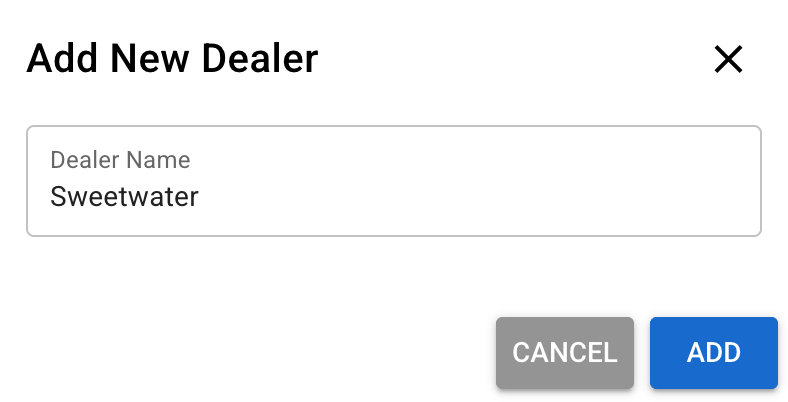
- Click Add New Dealer
- Dealer Name — the name of the third party (e.g. “Sweetwater”)
- Click Add
Once a dealer is created, you can select it when generating licenses. See Distributing Licenses for more on how dealer distribution works.
Next Steps
- Distributing Licenses — deliver licenses to your customers
- Offline Licensing with WooCommerce — set up offline activation through your store