Setting Up Your Product
Before you can sell or distribute licenses, you need to set up three things in the KEYZY dashboard: a Product, an SKU, and Licenses.
Add a Product
A product represents your software application.
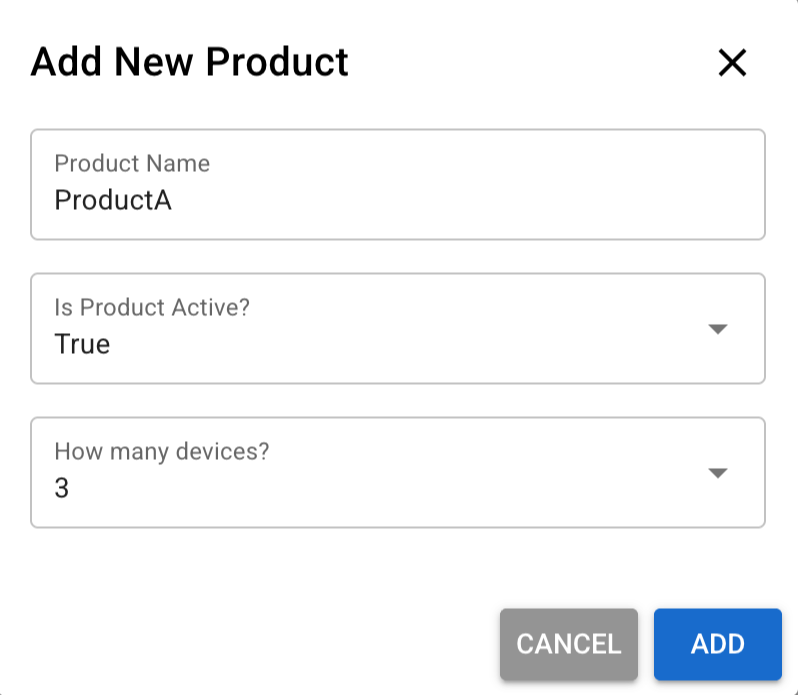
- Go to the Products page
- Click Add New Product
- Name — give your product a recognizable name
- Is Product Active? — set to active so licenses can be validated against it
- How many devices? — the maximum number of devices a single license can be activated on. For example, set this to 3 if you want each customer to use the software on up to 3 machines.
Add an SKU (Stock Keeping Unit)
An SKU defines a specific version or tier of your product — for example, “Pro Annual” or “Basic Perpetual”. Each SKU has its own license type, pricing tier, and settings.
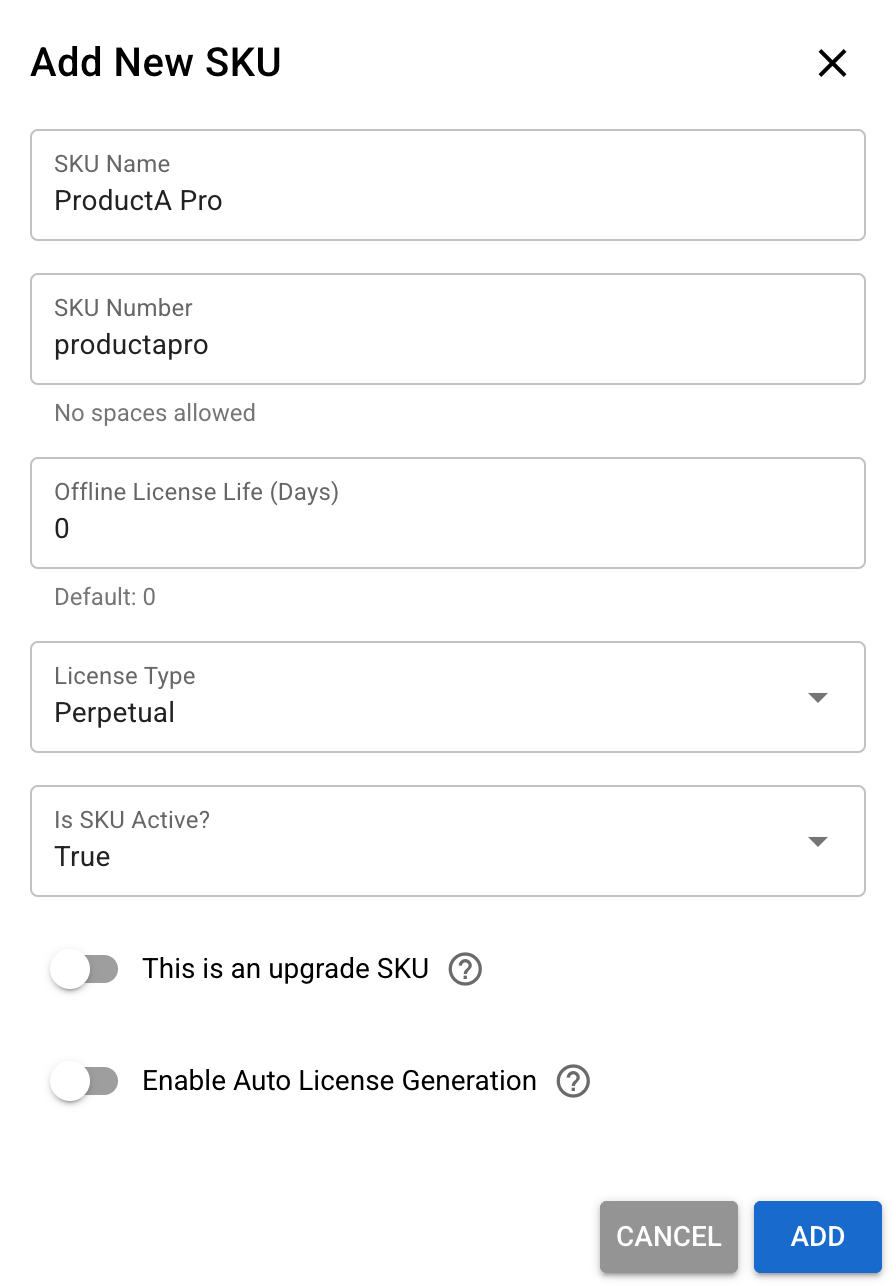
- Go to the SKU page
- Click Add New SKU
- Name — include the product name and tier (e.g. “ProductA Pro Perpetual”, “ProductA Starter Subscription”)
- SKU Number — a unique identifier you’ll use in API calls and your store integration. Cannot contain spaces.
- License Type — choose one:
- Perpetual — license never expires
- Subscription — license expires after a set period, requires renewal
- Trial — time-limited evaluation license
- Offline License Life — how long a locally cached license remains valid before the application needs to contact the server again. This applies to semi-online activation. Set the value in days.
- Is SKU Active? — set to active
- This is an upgrade SKU — enable this if licenses under this SKU are meant to be used as upgrade targets (e.g. upgrading from Basic to Pro)
- Enable Auto License Generation — when enabled, KEYZY automatically generates new licenses when stock runs low, so you never run out during sales
Associate Products to Your SKU
After creating the SKU, you need to link at least one product version to it:
- Go back to the SKU list
- Click Manage Products on your SKU
- Select the product version you created earlier
Generate Licenses
Once you have a product and an SKU, you can generate licenses.
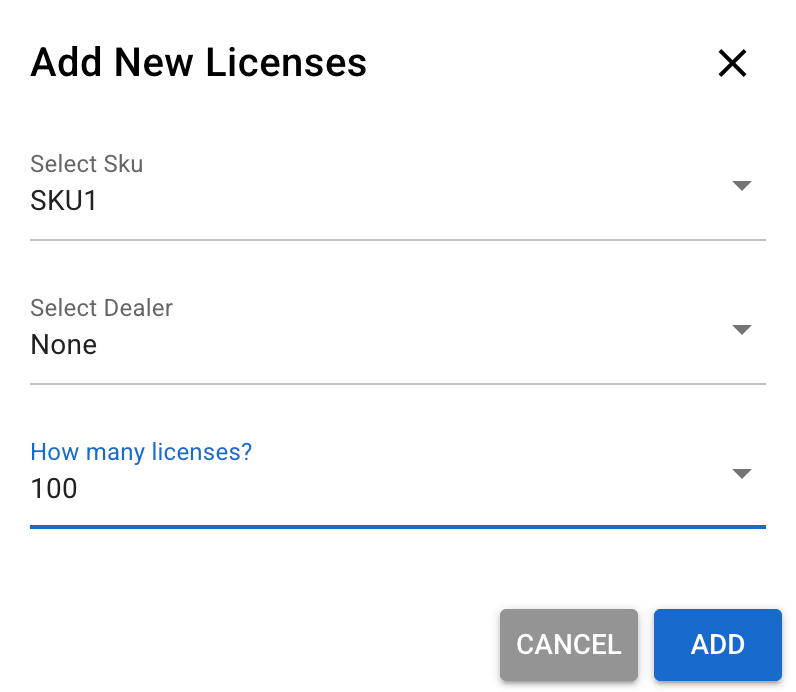
- Go to the Licenses page
- Click Add Licenses
- Select the SKU you want to generate licenses for
- Optionally select a Dealer if you sell through a third party
- Choose how many licenses to generate
- Click Add
Generated licenses are ready to be distributed. See Distributing Licenses for the different distribution methods available.
Next Steps
- Setting Up Your Product for Sale — add App Keys and Dealers
- Distributing Licenses — deliver licenses to your customers