Install WooCommerce Plugin
To start with, please download the keyzywc.zip file first.
Install the WooCommerce plugin
The installation process is the same as any other Wordpress plugin.
- Login to your WooCommerce store as admin
- Go to the “Admin Dashboard”
- Click “Add New menu item” under the “Plugins Menu”
- Click “Upload Plugin”
- Click “Choose File” and select the “keyzywc.zip” file
- After the installation finishes, activate the plugin
Settings
Add the “AppId” and the “ApiKey” to the plugin settings
- Go to Keyzy’s dashboard
- Click the “App Keys” menu item
- If you do not have a “Write App Key” pair with “Write Permissions”, you can create one with the following steps:
- Click “Add New App Key”
- Change permissions to “Write”
- Click “Add”
- Copy the “AppId” and “ApiKey” information
- Go to the WooCommerce Store “Admin Panel”
- Click Settings / Keyzy Settings
- Paste the “AppId” and “ApiKey” in their respective boxes
- Click “Save Changes”
Other Plugin Settings
Show Download Link: Enable this option to allow users to download their license files from the [keyzy-downloads] page.
Show HostID Input Field: Enable this option if you use a fully offline activation schema. Users will need to copy and paste their HostID into this field.
Show Manageable Activations to Users: Enable this option to allow users to delete their activations from the KEYZY system for Online and Semi-Online activation schemas. For Offline activation schemas, users can still delete activations, but the deletion is not reflected on the client side. Similarly, if there is no internet connection, deletions for Semi-Online activations will not be reflected on the client side.
Disable Register Product Notification: Enable this option to prevent WooCommerce from sending order emails when users register a product purchased from a dealer using the Register Product function.
Add The Shortcode to A Page
After the installation of KeyzyWc, you may add “keyzy download” shortcode to any page of your WooCommerce site. Open a page and add [keyzy-downloads] shortcode.
Customizing the Downloads Page Appearance
The [keyzy-downloads] shortcode output uses CSS classes so you can easily customize the appearance to match your theme.
CSS classes:
.keyzy-sku-block— Wrapper for each license/SKU (separated by a 2px border).keyzy-product-block— Wrapper for each product within a SKU (separated by a 1px border).keyzy-activation-row— Each activation entry under a product
Example overrides:
/* Remove borders between products */
.keyzy-product-block { border-top: none; }

/* Custom SKU separator */
.keyzy-sku-block { border-top: 3px solid #333; margin-top: 30px; }

/* Increase activation indent */
.keyzy-activation-row { margin-left: 20px; }
No changes needed on your end — everything works out of the box with sensible defaults.
Important Notes
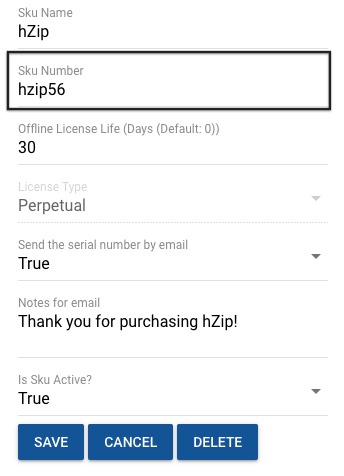
The Product’s SKU on WooCommerce should be the same as the SKU Number in KEYZY SKU Page.
You should also apply the following options on WooCommerce:
- Uncheck: “Allow customers to place orders without an account”, under WooCommerce Settings -> Accounts & Privacy
- Check: “Allow customers to create an account during checkout”, under WooCommerce Settings -> Accounts & Privacy
How to Debug
KEYZYWc uses the standard WordPress error log file for logging. To enable logging in WordPress, add the following settings to your wp-config.php file:
ini_set( 'log_errors', 1 );
ini_set( 'error_log', '/path/to/debug.log' );